
Create Tickets
Topics
This documentation provides a list of acceptable arguments for programmatically creating tickets using the ORM API.
When creating tickets using the ORM, the e-commerce repository must be passed as a parameter to tribe_tickets() and the minimum argument required is the title.
If one of these requirements is missing, false will be returned from tribe_tickets('[e-commerce]')->set_args( $args )->create(); and a new ticket will not be created.
E-commerce Repositories
These are the expected repository parameters that can be passed to tribe_tickets():
- RSVP =
'rsvp' - Tickets Commerce =
'tickets-commerce' - Easy Digital Downloads =
'edd' - WooCommerce =
'woo' - Tribe Commerce =
'tribe-commerce'(note: this has been deprecated, use Tickets Commerce instead)
RSVP
Example with Minimal Arguments
$args = [
    'title'                 => 'Simple ORM RSVP',
    'status'                => 'publish',
    '_tribe_rsvp_for_event' => 718,
];

$ticket = tribe_tickets( 'rsvp' )->set_args( $args )->create();
While you can simply create an RSVP in the database by only passing a title as an argument, in order to immediately see the RSVP on the frontend, you will need to set the post_status to publish and tell the ORM which post or event to attach the RSVP ticket (in this example, we’re assigning the new RSVP ticket to the event with the post_id 718). Under the hood, this assignment is done using the _tribe_rsvp_for_event meta_key in the wp_postmeta table.
Example with Complete Arguments
// Set the start date to yesterday and the end date to a week from today.
$start_date = date( 'Y-m-d H:i:s', strtotime('-1 day') );
$end_date = date( 'Y-m-d H:i:s', strtotime( '+7 days' ) );

$args = [
    'title'                          => 'ORM Created RSVP',
    'status'                         => 'publish',
    '_tribe_rsvp_for_event'          => 718,
    'excerpt'                        => 'This RSVP was created using the ORM!',
    '_tribe_ticket_show_description' => true,
    '_tribe_ticket_capacity'         => 500,
    '_tribe_ticket_show_not_going'   => true,
    '_ticket_start_date'             => $start_date,
    '_ticket_end_date'               => $end_date,
];

$ticket = tribe_tickets( 'rsvp' )->set_args( $args )->create();
These are all the arguments available when creating a new RSVP. This diagram shows what each key represents if you were to create an RSVP using the classic editor admin dashboard:
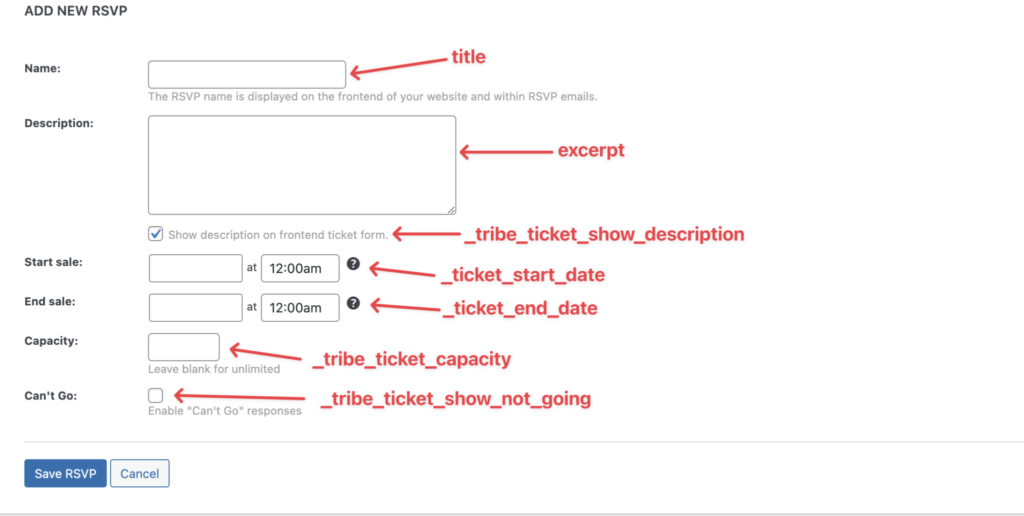
Note that the event ID and publication status only need to be specified if using the ORM to create an RSVP since that information is assumed and available when creating an RSVP from the dashboard.
Tickets Commerce
The Tickets Commerce repository is the modern e-commerce solution for Event Tickets. It provides a flexible way to create and manage tickets with payment processing capabilities.
Example with Minimal Arguments
$args = [
    'title'          => 'Ticket Created with ORM',
    'status'         => 'publish',
    'event'          => 945,
];

$ticket = tribe_tickets( 'tickets-commerce' )->set_args( $args )->create();
Same as with RSVPs, you can simply create a new ticket in the database by only passing a title as an argument, however in order to immediately see the ticket on the frontend, you will need to set the post_status to publish and tell the ORM which post or event to attach the Tickets Commerce ticket (in this example, we’re assigning the new Tickets Commerce ticket to the event with the post_id 945). The Tickets Commerce repository has an alias event for _tec_tickets_commerce_event.
Example with Complete Arguments
// Generate start date as the current time and end date as 30 days from now
$start_date = date( 'Y-m-d H:i:s' );
$end_date = date( 'Y-m-d H:i:s', strtotime( '+30 days' ) );

$args = [
    'title'                    => 'Premium Event Ticket',
    'status'                   => 'publish',
    'event'                    => 945,
    'price'                    => 29.99,
    'show_description'         => true,
    'excerpt'                  => 'This ticket includes premium seating and a meet-and-greet.',
    '_manage_stock'            => 'yes',
    '_stock'                   => 100,
    '_stock_status'            => 'instock',
    '_backorders'              => 'no',
    '_tribe_ticket_capacity'   => 100,
    '_global_stock_mode'       => 'own',
    'tribe_ticket_type'        => 'default',
    '_sku'                     => 'PREMIUM-945',
    '_ticket_start_date'       => $start_date,
    '_ticket_end_date'         => $end_date,
];

$ticket = tribe_tickets( 'tickets-commerce' )->set_args( $args )->create();WooCommerce
Event Tickets Plus allows you to use WooCommerce to sell tickets. This documentation provides a list of acceptable arguments for programmatically creating WooCommerce tickets using the ORM API. It is important to note that you must have Event Tickets, Event Tickets Plus, and WooCommerce installed and activated to use this feature.
Example with Minimal Arguments
$args = [
    'title'                      => 'Simple WooCommerce Ticket',
    'status'                     => 'publish',
    '_tribe_wooticket_for_event' => 718,
];

$ticket = tribe_tickets('woo')->set_args($args)->create();
While you can create a WooCommerce ticket in the database by only passing a title, to ensure it works correctly and is immediately visible on the frontend, you need to set the post_status to publish and specify the event ID to attach the ticket to (in this example, we’re assigning the ticket to the event with post_id 718). The association is stored using the _tribe_wooticket_for_event meta key in the wp_postmeta table.
Example with Complete Arguments
	// Set the start date to yesterday and the end date to a month from now.
	$start_date = date('Y-m-d H:i:s', strtotime('-1 day'));
	$end_date = date('Y-m-d H:i:s', strtotime('+1 month'));

	$args = [
		'title'                          => 'Premium WooCommerce Ticket',
		'status'                         => 'publish',
		'_tribe_wooticket_for_event'     => 1221,
		'_price'                         => 49.99,
		'excerpt'                        => 'This premium ticket includes VIP seating and a merchandise package.',
		'_tribe_ticket_show_description' => true,
		'_manage_stock'                  => 'yes',
		'_stock'                         => 100,
		'_stock_status'                  => 'instock',
		'_backorders'                    => 'no',
		'_tribe_ticket_capacity'         => 100,
		'_global_stock_mode'             => 'own',
		'_sku'                           => 'WOOTICKET-VIP-' . time(),
		'_virtual'                       => 'yes',
		'_downloadable'                  => 'no',
		'_ticket_start_date'             => $start_date,
		'_ticket_end_date'               => $end_date,
		'_regular_price'                 => 49.99,
		'_sale_price'                    => '',
		'product_type'                   => 'simple',
	];

$ticket = tribe_tickets('woo')->set_args($args)->create();Important Note About Stock and Capacity
Since WooCommerce tickets are WooCommerce products, it’s essential to properly set stock management and capacity fields. Here are two common configurations:
// For limited stock tickets (100 capacity in this example):
$args = [
    // ... other fields
    '_manage_stock'          => 'yes',      // Required for stock management
    '_stock'                => 100,         // Available stock quantity
    '_stock_status'         => 'instock',   // Must be 'instock' for available tickets
    '_backorders'           => 'no',        // Required setting
    '_tribe_ticket_capacity'=> 100,         // Total capacity
    '_global_stock_mode'    => 'own',       // Stock mode must match capacity settings
];

// For unlimited tickets:
$args = [
    // ... other fields
    '_manage_stock'          => 'no',        // No stock management for unlimited
    '_tribe_ticket_capacity' => -1,          // -1 indicates unlimited capacity
    '_global_stock_mode'     => 'unlimited', // Set mode to unlimited
];
If your tickets are showing as “Sold Out” immediately after creation, ensure you’ve set all of these stock and capacity fields correctly:
_stock_statusmust be set to'instock'_manage_stockmust be set to'yes'for limited capacity tickets_global_stock_modemust match your capacity intent (use'own'for independent ticket capacity)- Both
_stockand_tribe_ticket_capacityshould be set to the same value for independent capacity tickets
WooCommerce Arguments Reference
title
- Type:
string - Description: The ticket name
- Meta Key: Post title
- Notes: Required
status
- Type:
string - Description: Ticket status
- Meta Key: Post status
- Notes: Set to ‘publish’ to make immediately available
_tribe_wooticket_for_event
- Type:
int - Description: Associated event ID
- Meta Key:
_tribe_wooticket_for_event - Notes: Links the ticket to an event
_price
- Type:
float - Description: Ticket price
- Meta Key:
_price - Notes: Should match
_regular_priceif both are specified
_regular_price
- Type:
float - Description: Regular ticket price
- Meta Key:
_regular_price - Notes: Should match
_priceif both are specified
_sale_price
- Type:
float - Description: Sale price (if on sale)
- Meta Key:
_sale_price - Notes: Leave empty if not on sale
_tribe_ticket_show_description
- Type:
boolean - Description: Whether to show description
- Meta Key:
_tribe_ticket_show_description - Notes: Boolean value
excerpt
- Type:
string - Description: Ticket description
- Meta Key: Post excerpt
- Notes: Description text
_manage_stock
- Type:
string - Description: Enable stock management
- Meta Key:
_manage_stock - Notes: ‘yes’ for limited tickets, ‘no’ for unlimited
_stock
- Type:
int - Description: Available stock
- Meta Key:
_stock - Notes: Current available quantity
_stock_status
- Type:
string - Description: Stock status
- Meta Key:
_stock_status - Notes: ‘instock’ or ‘outofstock’
_backorders
- Type:
string - Description: Allow backorders
- Meta Key:
_backorders - Notes: Usually set to ‘no’
_tribe_ticket_capacity
- Type:
int - Description: Total capacity
- Meta Key:
_tribe_ticket_capacity - Notes: Total number of tickets or -1 for unlimited
_global_stock_mode
- Type:
string - Description: Stock mode
- Meta Key:
_global_stock_mode - Notes: ‘own’, ‘global’, ‘capped’, ‘unlimited’
_sku
- Type:
string - Description: Stock Keeping Unit
- Meta Key:
_sku - Notes: Unique identifier (consider adding timestamp)
_virtual
- Type:
string - Description: Whether the product is virtual
- Meta Key:
_virtual - Notes: Usually ‘yes’ for tickets
_downloadable
- Type:
string - Description: Whether the product is downloadable
- Meta Key:
_downloadable - Notes: Usually ‘no’ for tickets
_ticket_start_date
- Type:
string - Description: Sale start date
- Meta Key:
_ticket_start_date - Notes: Format: ‘YYYY-MM-DD HH:MM:SS’
_ticket_end_date
- Type:
string - Description: Sale end date
- Meta Key:
_ticket_end_date - Notes: Format: ‘YYYY-MM-DD HH:MM:SS’
product_type
- Type:
string - Description: WooCommerce product type
- Meta Key: Product type taxonomy term
- Notes: Usually ‘simple’ for tickets
Adding Attendee Information Fields
Event Tickets Plus includes the Attendee Information feature (formerly called “Attendee Meta”) which lets you add custom fields to the ticket purchase form. When creating tickets programmatically, you can define these fields using the _tribe_tickets_meta_enabled and _tribe_tickets_meta parameters.
Basic Implementation
Here’s a basic example of creating a WooCommerce ticket with a single additional text field for attendees:
$args = [
    // Basic ticket information
    'title'                      => 'Ticket with Attendee Field',
    'status'                     => 'publish',
    '_tribe_wooticket_for_event' => 718,
    '_price'                     => 20,

    // Enable attendee information collection
    '_tribe_tickets_meta_enabled' => 'yes',

    // Define a single attendee field
    '_tribe_tickets_meta' => [
        [
            'type'        => 'text',
            'label'       => 'Company Name',
            'required'    => 'on',
            'slug'        => 'company',
            'extra'       => [],
            'classes'     => [],
            'attributes'  => [],
            'placeholder' => '',
            'description' => '',
            'field_order' => 0,
        ]
    ],

    // Standard ticket configuration needed for frontend display
    '_virtual'                   => 'yes',
    '_manage_stock'              => 'yes',
    '_stock'                     => 100,
    '_stock_status'              => 'instock',
    '_tribe_ticket_capacity'     => 100,
    '_global_stock_mode'         => 'own',
    '_ticket_start_date'         => date('Y-m-d H:i:s'),
    '_ticket_end_date'           => date('Y-m-d H:i:s', strtotime('+1 year')),
];

$ticket = tribe_tickets('woo')->set_args($args)->create();
The key parts for attendee fields are:
_tribe_tickets_meta_enabled: Set to ‘yes’ to enable attendee information fields_tribe_tickets_meta: An array of field definitions
Available Field Types
The following field types are supported:
text: Single-line text inputtextarea: Multi-line text arearadio: Radio button selection (single choice)checkbox: Checkbox options (multiple choices)select: Dropdown select menuemail: Email address field with validationdate: Date picker fieldtelephone: Phone number fieldurl: URL field with validation
Example with Multiple Field Types
Here’s an example of creating a ticket with multiple different field types. The rest of the ticket is set up the same, this is just showing examples of the different types of fields you can create.
$args = [
    // [other args ...]
    '_tribe_tickets_meta_enabled' => 'yes',
    '_tribe_tickets_meta' => [
        [
            'type'        => 'text',
            'label'       => 'Nickname',
            'required'    => 'on',
            'slug'        => 'full-name',
            'extra'       => [],
            'classes'     => [],
            'attributes'  => [],
            'placeholder' => '',
            'description' => '',
            'field_order' => 0,
        ],
        [
            'type'        => 'email',
            'label'       => 'Email TEST',
            'required'    => 'on',
            'slug'        => 'email-address',
            'extra'       => [],
            'classes'     => [],
            'attributes'  => [],
            'placeholder' => '',
            'description' => '',
            'field_order' => 1,
        ],
        [
            'type'        => 'radio',
            'label'       => 'T-Shirt Size',
            'required'    => 'on',
            'slug'        => 'tshirt-size',
            'extra'       => [
                'options' => [
                    'S',
                    'M',
                    'L',
                    'XL',
                    'XXL'
                ],
            ],
            'classes'     => [],
            'attributes'  => [],
            'placeholder' => '',
            'description' => '',
            'field_order' => 2,
        ],
        [
            'type'        => 'checkbox',
            'label'       => 'Dietary Restrictions',
            'required'    => '',
            'slug'        => 'dietary',
            'extra'       => [
                'options' => [
                    'Vegetarian',
                    'Vegan',
                    'Gluten-free',
                    'Nut allergy'
                ],
            ],
            'classes'     => [],
            'attributes'  => [],
            'placeholder' => '',
            'description' => '',
            'field_order' => 3,
        ],
        [
            'type'        => 'select',
            'label'       => 'Job Role',
            'required'    => 'on',
            'slug'        => 'job-role',
            'extra'       => [
                'options' => [
                    'Developer',
                    'Designer',
                    'Manager',
                    'Marketing',
                    'Other'
                ],
            ],
            'classes'     => [],
            'attributes'  => [],
            'placeholder' => '',
            'description' => '',
            'field_order' => 4,
        ],
        [
            'type'        => 'date',
            'label'       => 'Arrival Date',
            'required'    => '',
            'slug'        => 'arrival-date',
            'extra'       => [],
            'classes'     => [],
            'attributes'  => [],
            'placeholder' => '',
            'description' => '',
            'field_order' => 5,
        ]
    ],

    // [other args ...]
];
For fields with options (radio buttons, checkboxes, select dropdowns), the extra parameter contains each option on a new line.
The same approach works for Tickets Commerce tickets, you would just change the repository from tribe_tickets('woo')to tribe_tickets('tickets-commerce')
Field Parameters Reference
Each field in the _tribe_tickets_meta array supports the following parameters:
type
- Type:
string - Description: The type of input field
- Options: text, textarea, radio, checkbox, select, email, date, telephone, url
- Required: Yes
label
- Type:
string - Description: The field label displayed to attendees
- Required: Yes
required
- Type:
string - Description: Whether the field is required
- Options: ‘on’ for required, empty string for optional
- Default: ” (optional)
slug
- Type:
string - Description: A unique identifier for the field (used in the database)
- Required: Yes
- Notes: Must be unique, use only lowercase letters, numbers, and hyphens
extra
- Type:
string - Description: For radio, checkbox, and select fields, contains the options separated by newlines
- Required: For radio, checkbox, and select fields
- Default: Empty string
field_order
- Type:
int - Description: The order in which the field appears in the form
- Required: No
- Default: 0
disabled
- Type:
boolean - Description: Whether the field is disabled
- Required: No
- Default: false